
Pick the service you use, then follow the steps. It takes about five minutes.
You’ll need: a ChatGPT plan that includes Codex, your phone, and 2.4 GHz Wi-Fi.
Verified on ChatGPT Plus. Business and Enterprise workspaces are not verified yet.
-
Plug in and join its Wi-Fi
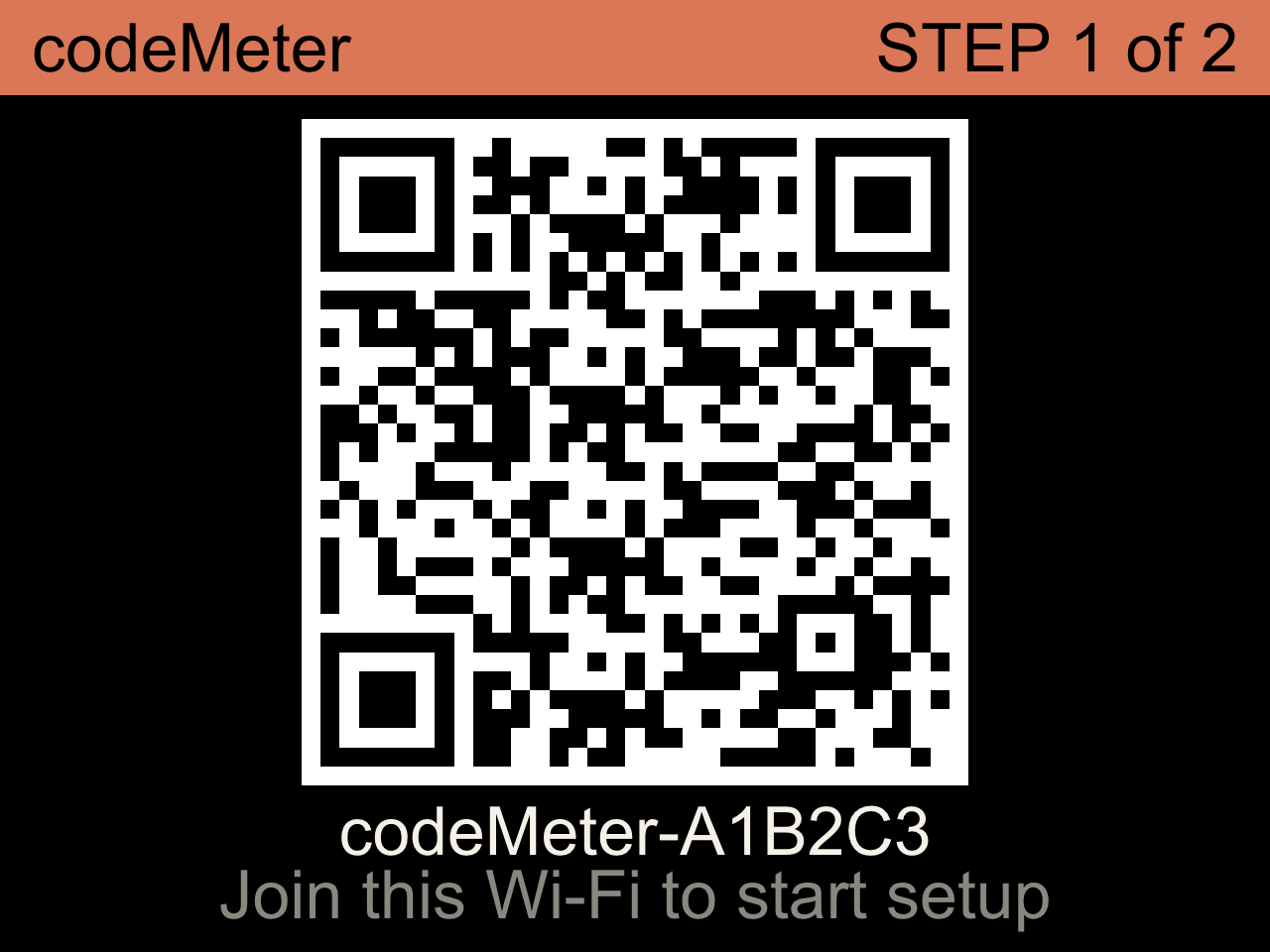
Power codeMeter with a USB-C cable. When it shows STEP 1, scan the QR code with your phone’s camera, or join the Wi-Fi network codeMeter-XXXXXX shown on the screen.

-
Choose OpenAI Codex and your Wi-Fi
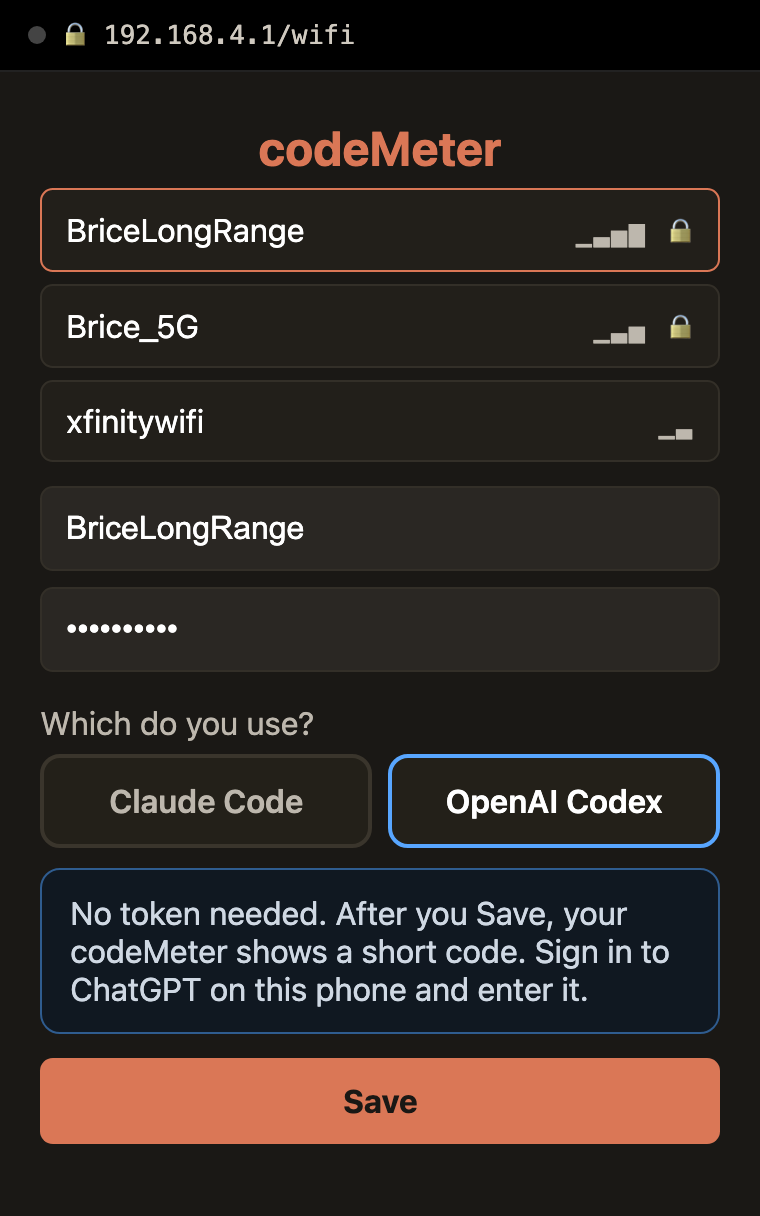
A setup page opens on your phone. If it doesn’t, go to
http://192.168.4.1.- Tap Setup Device.
- Under “Which do you use?” tap OpenAI Codex.
- Choose your home Wi-Fi, enter its password, and tap Save.
-
Sign in with the code on the screen
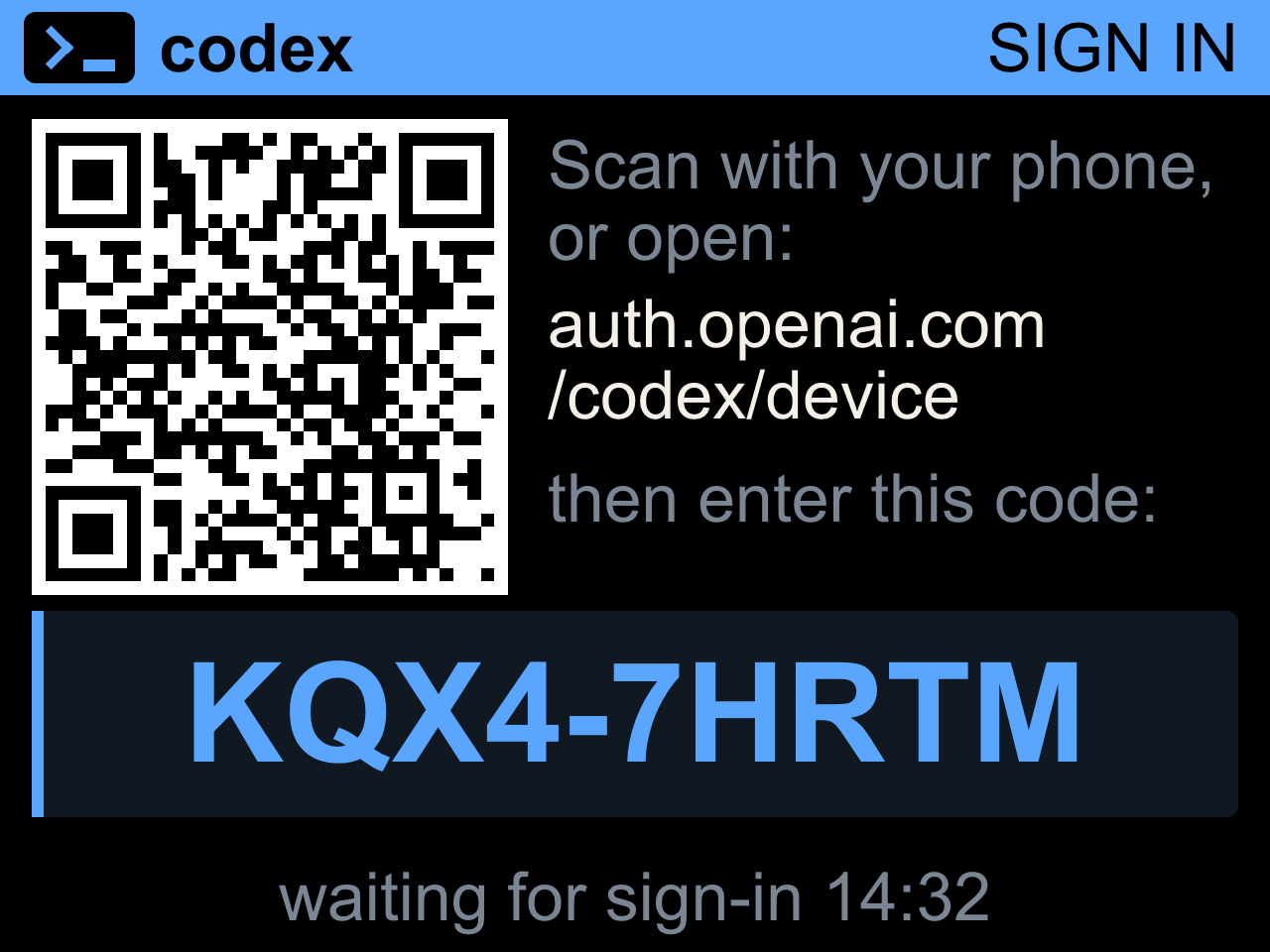
codeMeter restarts and shows a blue SIGN IN screen with a code like KQX4-7HRTM.
- On your phone (back on your normal Wi-Fi), open auth.openai.com/codex/device or scan the QR on the screen.
- Sign in to ChatGPT.
- Type the code and approve.
The code lasts 15 minutes. If it expires, press B for a new one.
-
You’re all set
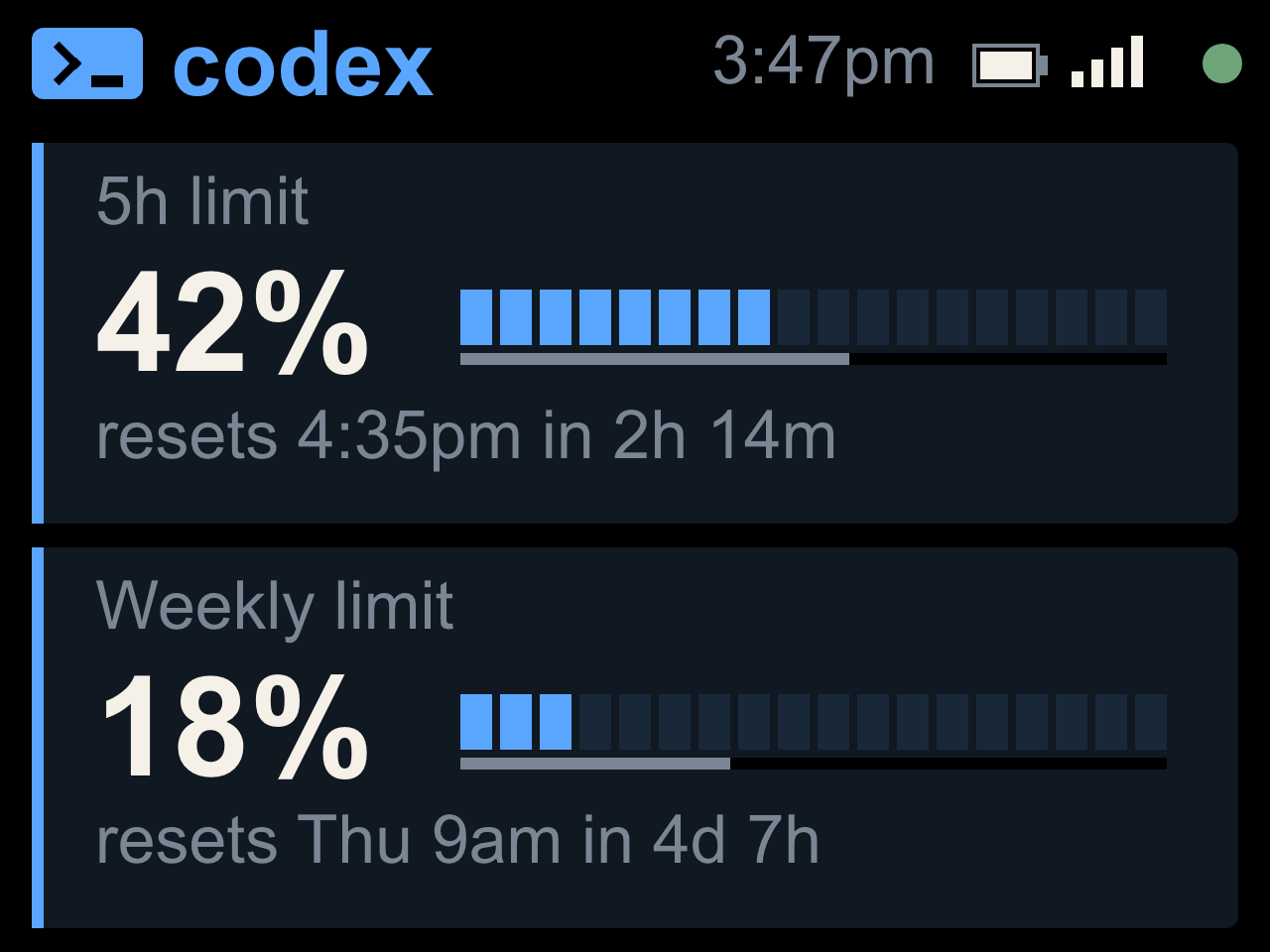
Your 5h limit and Weekly limit appear within seconds and refresh every minute. codeMeter now runs on its own; your phone isn’t needed.
You’ll need: a Claude Pro or Max plan, a computer with the Claude CLI (once), your phone, and 2.4 GHz Wi-Fi.
Team and Enterprise accounts show a monthly usage view instead of the 5-hour and weekly bars.
-
Get your Claude token
On your computer, open a terminal and run:
claude setup-tokenLog in when the browser opens. It prints a long token starting with
sk-ant-oat01-. Copy it and send it to your phone (for example, email it to yourself). You only do this once. -
Plug in and join its Wi-Fi
Power codeMeter with a USB-C cable. When it shows STEP 1, scan the QR code with your phone’s camera, or join the Wi-Fi network codeMeter-XXXXXX shown on the screen.
-
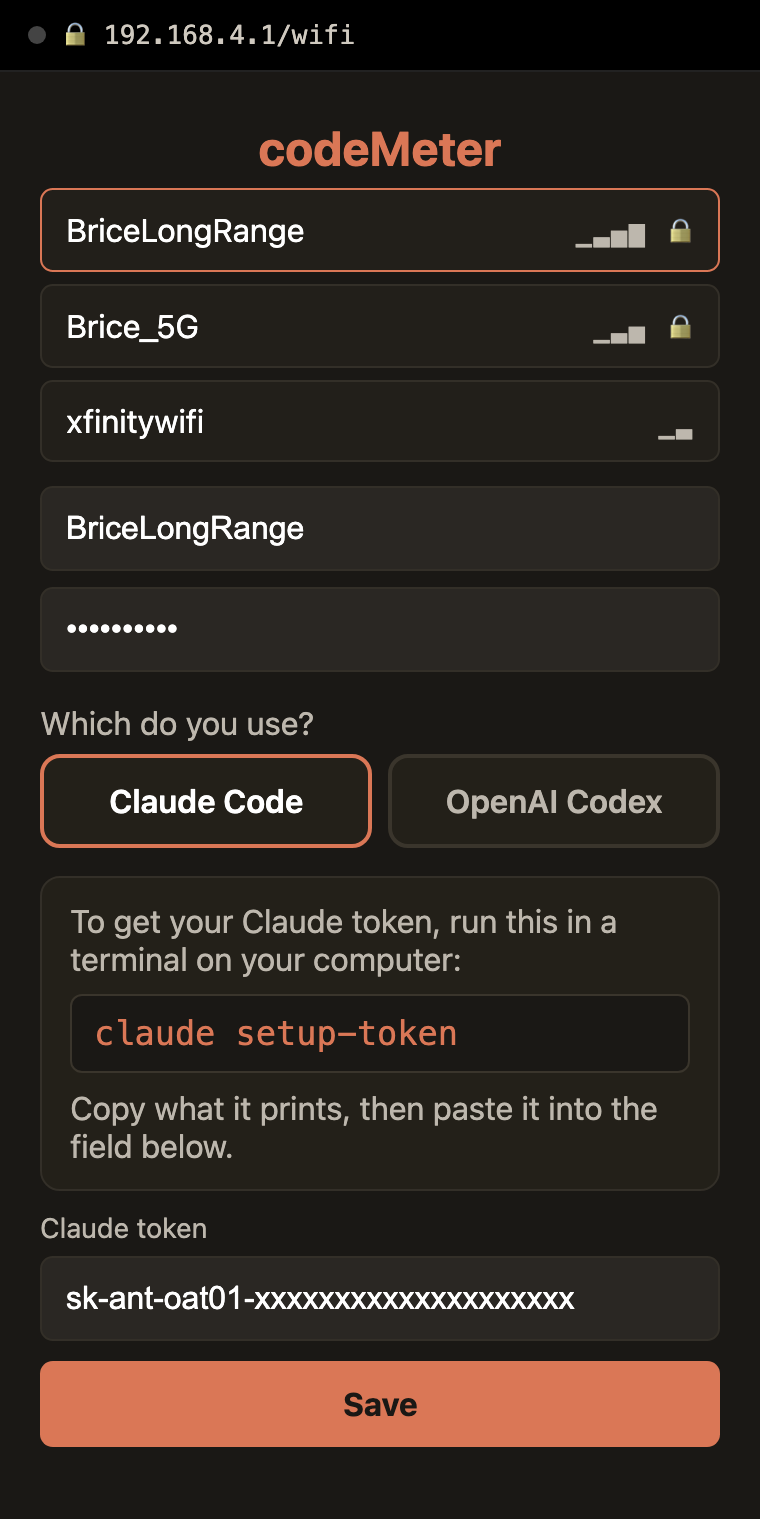
Choose Claude Code, your Wi-Fi, and paste the token
A setup page opens on your phone. If it doesn’t, go to
http://192.168.4.1.- Tap Setup Device. Claude Code is already selected.
- Choose your home Wi-Fi and enter its password.
- Paste the token into Claude token and tap Save.
Prefer scanning a QR?
Paste the token here on your computer. With your phone on the codeMeter-XXXXXX Wi-Fi, scan the QR and open the link. If the phone says Token saved, finish the Wi-Fi on the setup page and leave the token box empty.
Made in your browser. The token is never uploaded.
QR appears here -
You’re all set
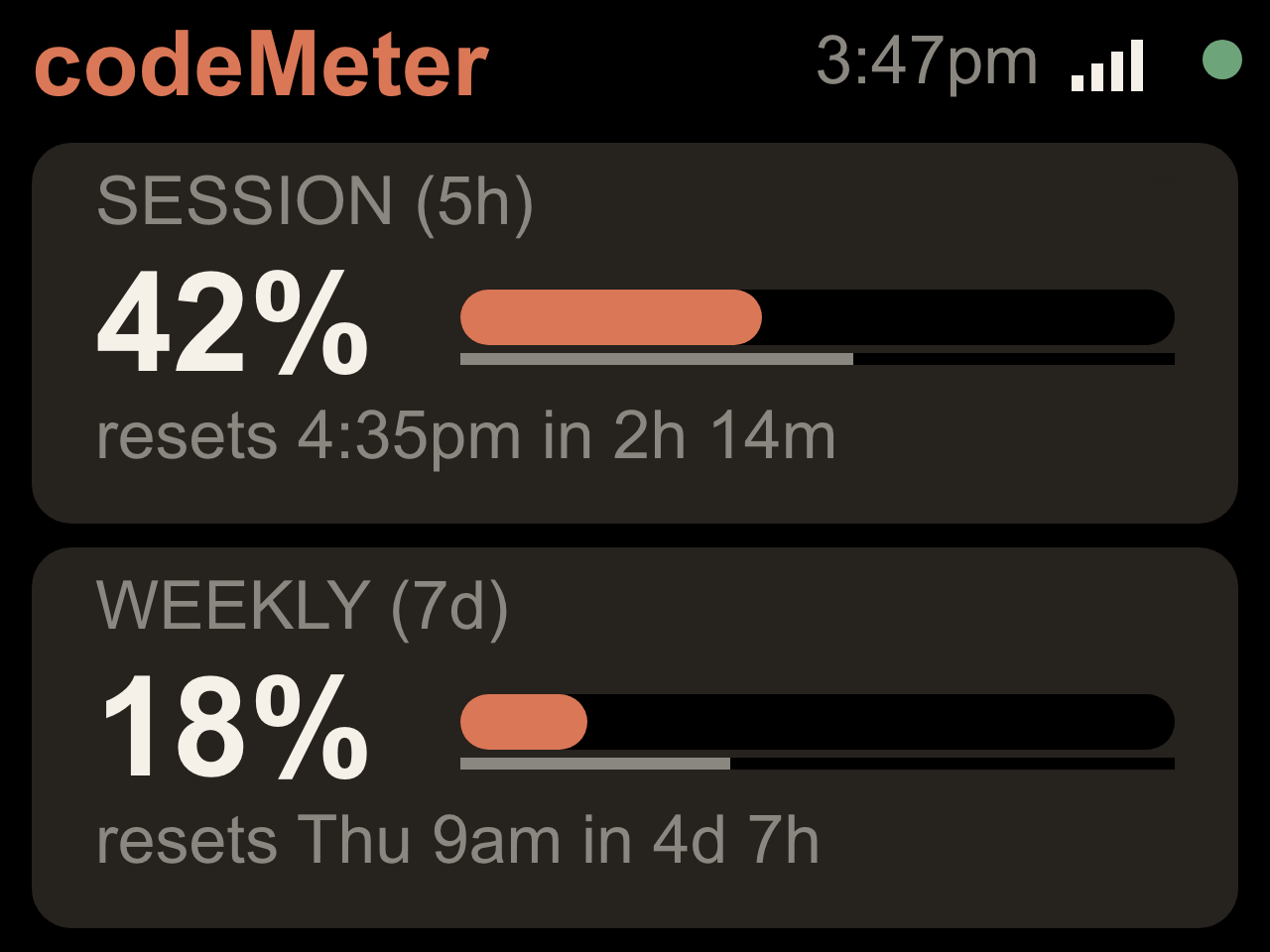
codeMeter restarts and shows your Session (5h) and Weekly (7d) usage within about a minute, refreshing every minute. It now runs on its own.
Reading the screen
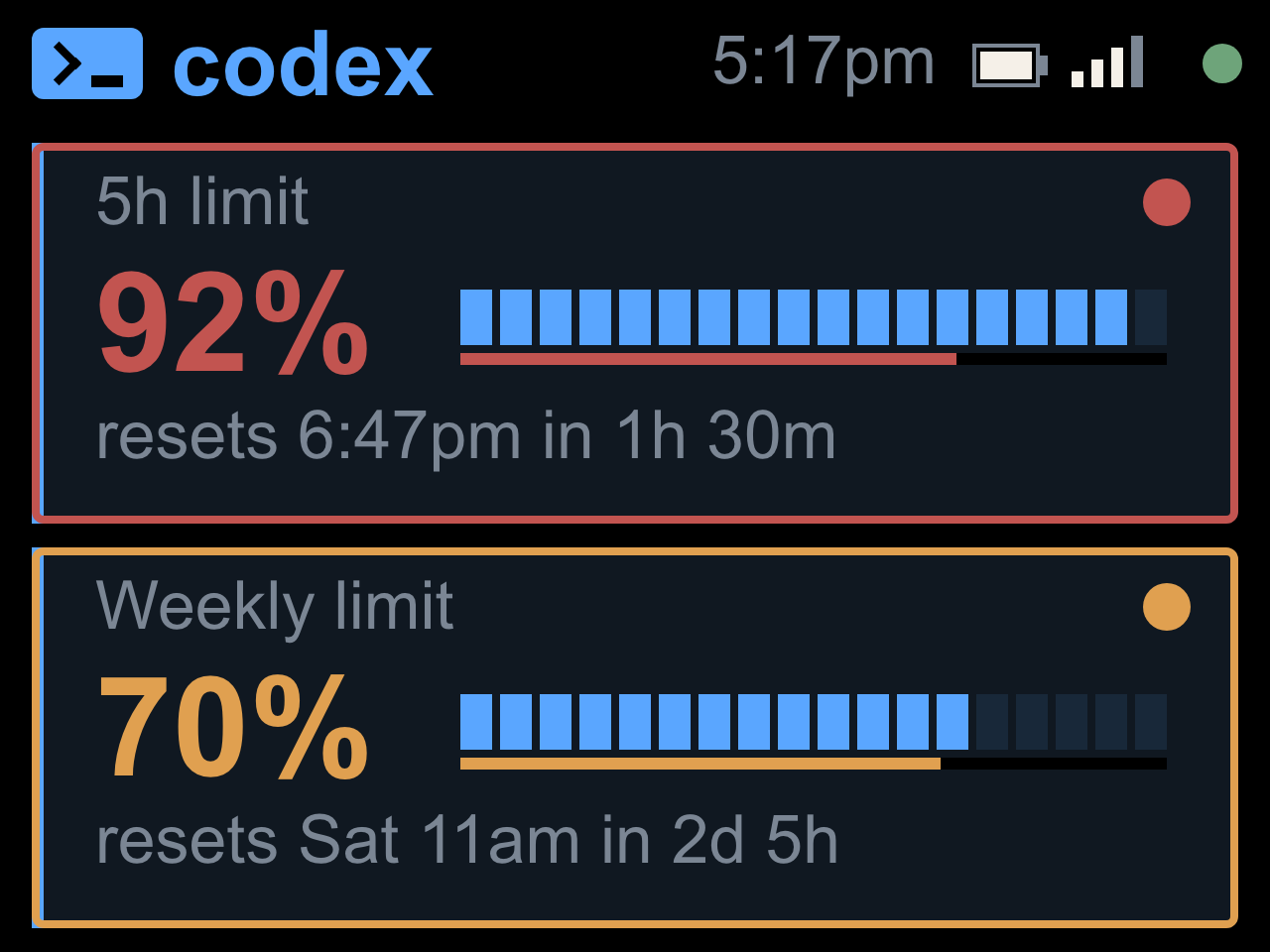
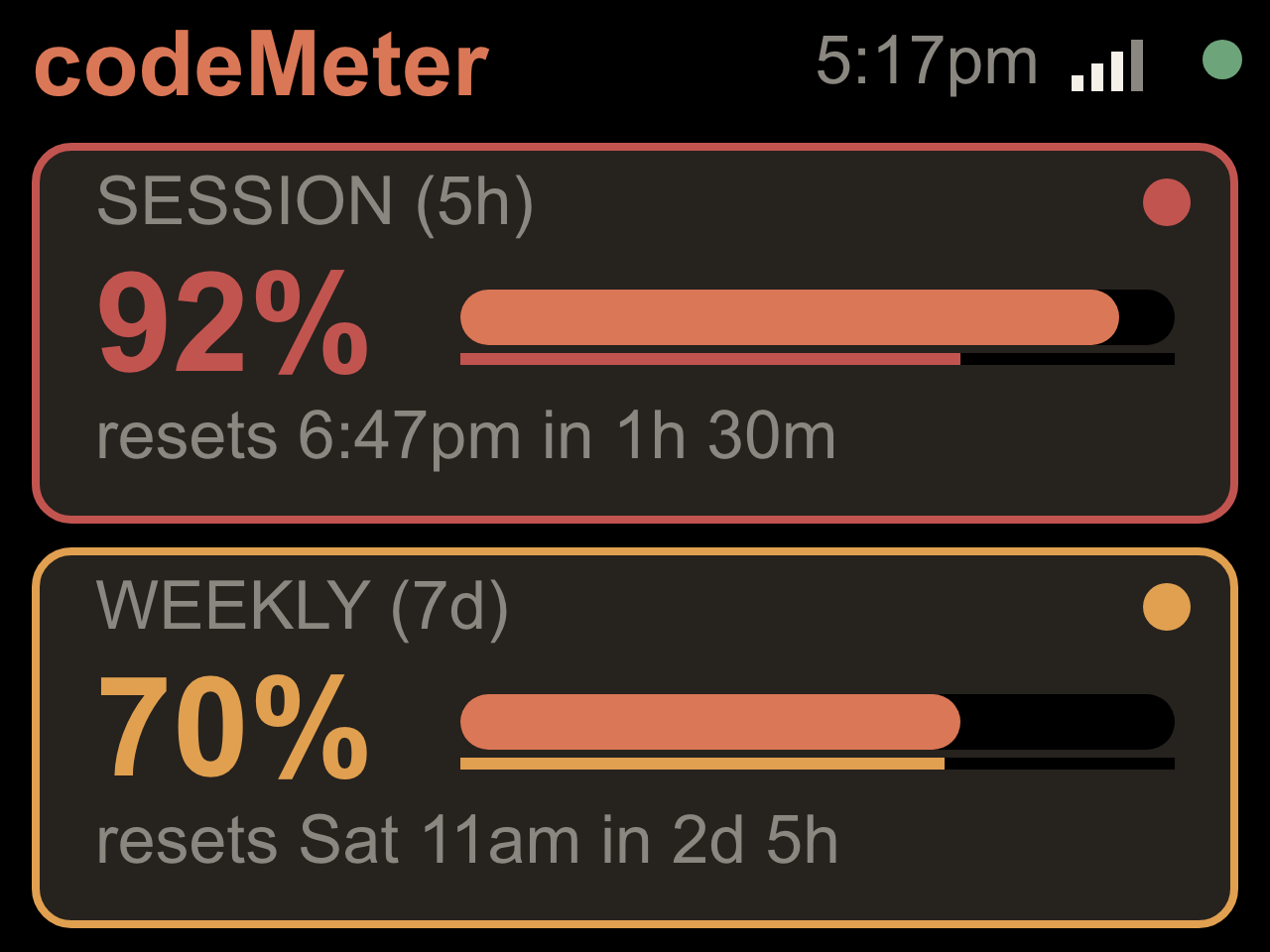
The top card is your 5-hour window, the bottom card your weekly window: percentage used, a bar, and when it resets.
The bar never changes color. Pace shows in the percentage, the card outline and corner dot, and the thin time line under the bar:
- Normal colors: on pace.
- Amber: using it faster than the clock.
- Red: clearly overspending; likely to run out before it resets.
The small dot at the top right is the connection: green OK, amber connecting or rate-limited, red error.
Buttons
-
TapHold
- A
- Light / dark
- Status screen
- B
- Brightness
- About 7 s: log in againThe screen says 5 s; keep holding past RE-ONBOARD. Wi-Fi is kept.
- C
- Screen on / off
- About 7 s: factory resetKeep holding past RESET. Use this to switch service.
Let go early to cancel a hold.
Troubleshooting
It won’t join my Wi-Fi
codeMeter needs 2.4 GHz Wi-Fi with a WPA2 password (not 5 GHz-only or WPA3-only). Check the password, then hold C about 7 s to start setup over.
The setup page didn’t open
Stay on the codeMeter-XXXXXX Wi-Fi and go to http://192.168.4.1. If your phone says the
network has no internet, stay connected anyway.
“Sign-in code expired”
Press B for a new code. B only gets a new code on this screen and on “Can’t reach OpenAI”.
“Can’t reach OpenAI”
It retries on its own, or press B. If it keeps happening, an ad blocker or filtering DNS is in the
way: allow auth.openai.com and chatgpt.com.
“Codex login expired”
Hold B about 7 s. codeMeter shows a new SIGN IN screen; repeat step 3. Your Wi-Fi is kept.
“Claude login expired”
Hold B about 7 s. The codeMeter-XXXXXX Wi-Fi comes back: run claude setup-token
again and paste the new token. Your Wi-Fi is kept.
Bars stay blank
Check that you have a Pro or Max plan, and that an ad blocker isn’t blocking api.anthropic.com.
The clock shows the wrong time
The time zone comes from ip-api.com. Allow it in your ad blocker, then unplug and replug codeMeter.
Switch to the other service
Hold C about 7 s to reset, then set up again and pick the other service.
Won’t start at all
Updates install themselves. For a USB recovery, use bricekevin.github.io/fw in Chrome or Edge on a computer, or email us.
Privacy
Your ChatGPT sign-inClaude token is stored only on codeMeter. There’s no Encinitas 3D account or server.
It connects to OpenAIAnthropic for your usage, GitHub for firmware updates, internet time servers, and ip-api.com for your time zone.
Lost it? Hold C about 7 s to wipe it, and sign it out from your ChatGPTClaude account settings.
Questions? Email [email protected].
codeMeter is made by Encinitas 3D and is not affiliated with or endorsed by OpenAI or Anthropic. OpenAI, ChatGPT and Codex are trademarks of OpenAI; Claude is a trademark of Anthropic.